

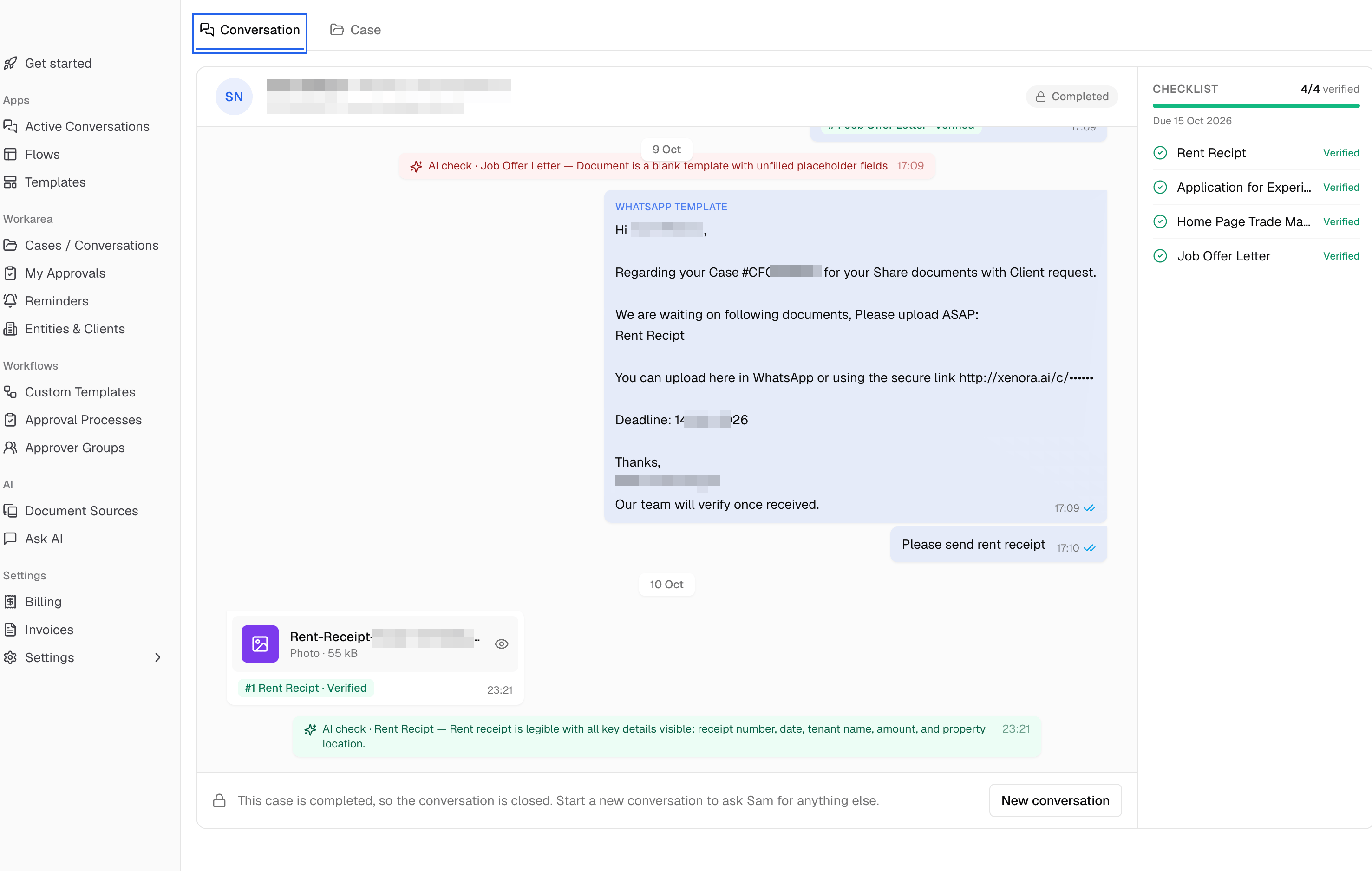
A conversation with the client, with the document checklist on the right
Where to find it
- Active Conversations (sidebar) — every conversation that is still open, most recent first. Search by client name or case number.
- Cases / Conversations — open any case and switch between the Conversation and Case tabs at the top.
Start a new conversation
Click New conversation. You don’t need to write a formal message — just list what you need, and Xenora writes the message for the client.1
Pick the client
Choose one or more clients. Sending to several clients at once creates a separate conversation for each. Use New client to add someone who isn’t in Xenora yet.
2
Pick the entity (optional)
The company or firm the request belongs to. You can create a new one on the spot.
3
List the documents
Type the documents you need, one per line, in your own words — for example Form 16, Rent receipts. Or start from a saved template (see below).
4
Check the checklist
A Document checklist preview appears as you type. Click a name to rename it, click Required to make a document optional, or add a document that’s missing. If something is unclear — say, Income Tax Return without a year — Xenora asks you a quick question with options to pick from. Documents that hold sensitive details show a shield icon; those details are stored masked.
5
Set the deadline and reminders
Pick a Document deadline and how often to remind the client. Reminders start 7 days before the deadline and stop 2 days after it. Choose No reminder if you’d rather remind the client yourself.
6
Choose how to send it
Tick WhatsApp to send on WhatsApp. Email is always sent when the client has an email address. The WhatsApp message preview shows exactly what the client will receive.
7
Send request
Click Send request. The client gets a message with the list of documents and a secure upload link.
A client can have only one open WhatsApp request at a time. If a client already has one, Xenora tells you and offers to Send by email instead. The other clients in the same request are sent as normal.
Templates
If you ask for the same documents often, save the list as a template:- New template saves what you’ve typed as a template you can reuse.
- Browse templates shows all templates. Star the ones you use most — up to four appear as quick buttons under Start from.
- From the Templates page, Use in conversation opens a new conversation with that template already filled in.
Chatting with the client
The conversation shows everything in order, grouped by day:- Your messages and the client’s replies, with WhatsApp ticks: ✓ sent, ✓✓ delivered, blue ✓✓ read.
- Files the client sends — Xenora matches each file to the right document on the checklist (for example #1 Rent Receipt) and shows its status. Click the eye icon to open it.
- AI checks — after each upload, Xenora’s AI checks the document and shows a note. Green means it looks right; red means something is wrong — for example, “Document is a blank template with unfilled placeholder fields”.
- WhatsApp template messages — the formal messages Xenora sends for you, such as the first request and reminders.
The 24-hour WhatsApp rule
WhatsApp only lets businesses send a free-form message within 24 hours of the client’s last message. The badge at the top tells you where you stand:- Chat open · 5h left — type a message and press Enter to send. (Shift+Enter adds a new line.)
- Awaiting reply — the client hasn’t written in the last 24 hours. You can still write to them: your text is sent as a custom message inside an approved WhatsApp template. Once the client replies, the chat opens again.
Things you can do from the conversation
- Send reminder — nudges the client about documents that are still pending. It’s turned off once every document has been received.
- Share a document — tap + next to the message box and pick a document or photo to send the client.
- Ask for another document — use Add under the checklist. The new document is added to the list and the client is asked for it.
- Turn on WhatsApp — if the case was sent by email only, the conversation shows Email only. Turn WhatsApp on to chat and send documents here.