Sharing documents with customers
Xenora isn’t just for collecting documents — you can also send documents to your customers. Use this when you need to share documents for your customer’s reference, or when you need them to review, sign, and send something back.How it works
Document sharing uses a built-in flow called “Share documents with Client”, available in your practice domain. Each share creates a case so you can track delivery, responses, and completion just like any other case.Sharing a document
1
Create a new case
From the Flows page, select Share documents with Client and click Create Case.
2
Add customer details
Enter the customer’s name, email, and mobile number, then create the case.
3
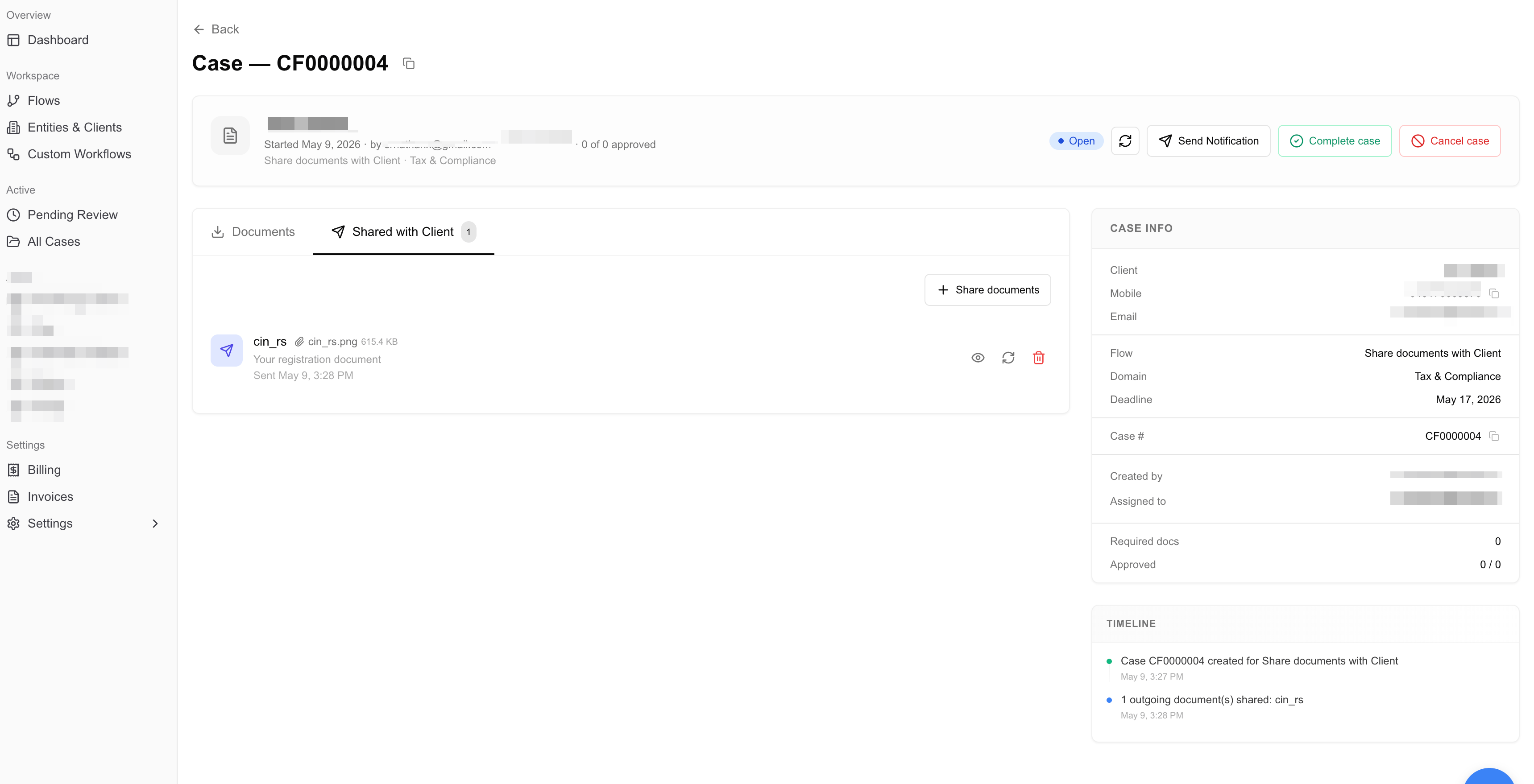
Open the Share Document tab
Inside the case, go to the Share Document tab and click Share Document to upload the files you want to send.
4
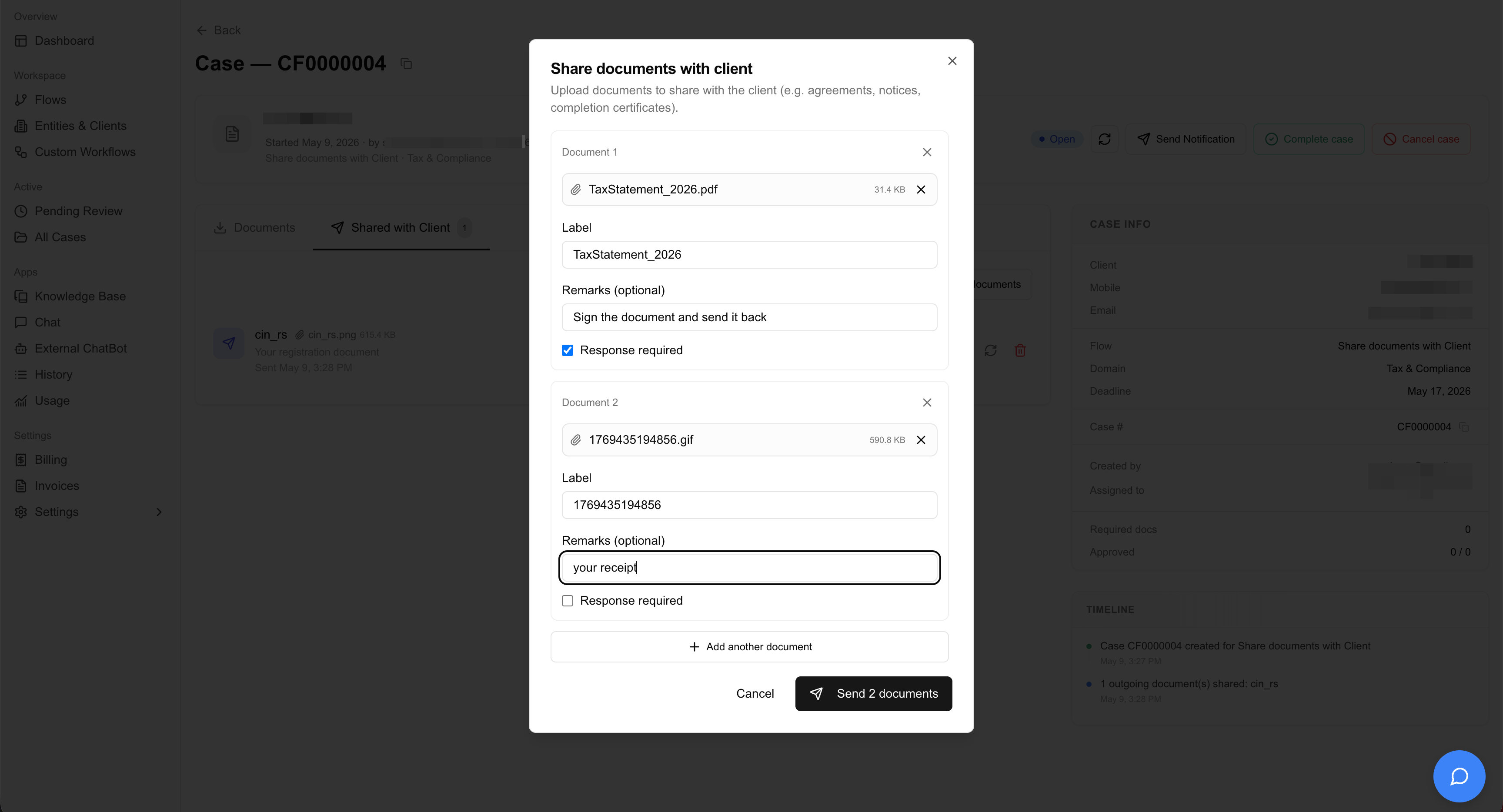
Configure response options
- Toggle Response required if you need the customer to send signed documents back.
- Use the Remarks field to add instructions for the customer (e.g., “Please sign on page 3 and return”).
5
Send and track
The customer receives the documents via WhatsApp and email. You can track delivery and any returned documents from the case page.