

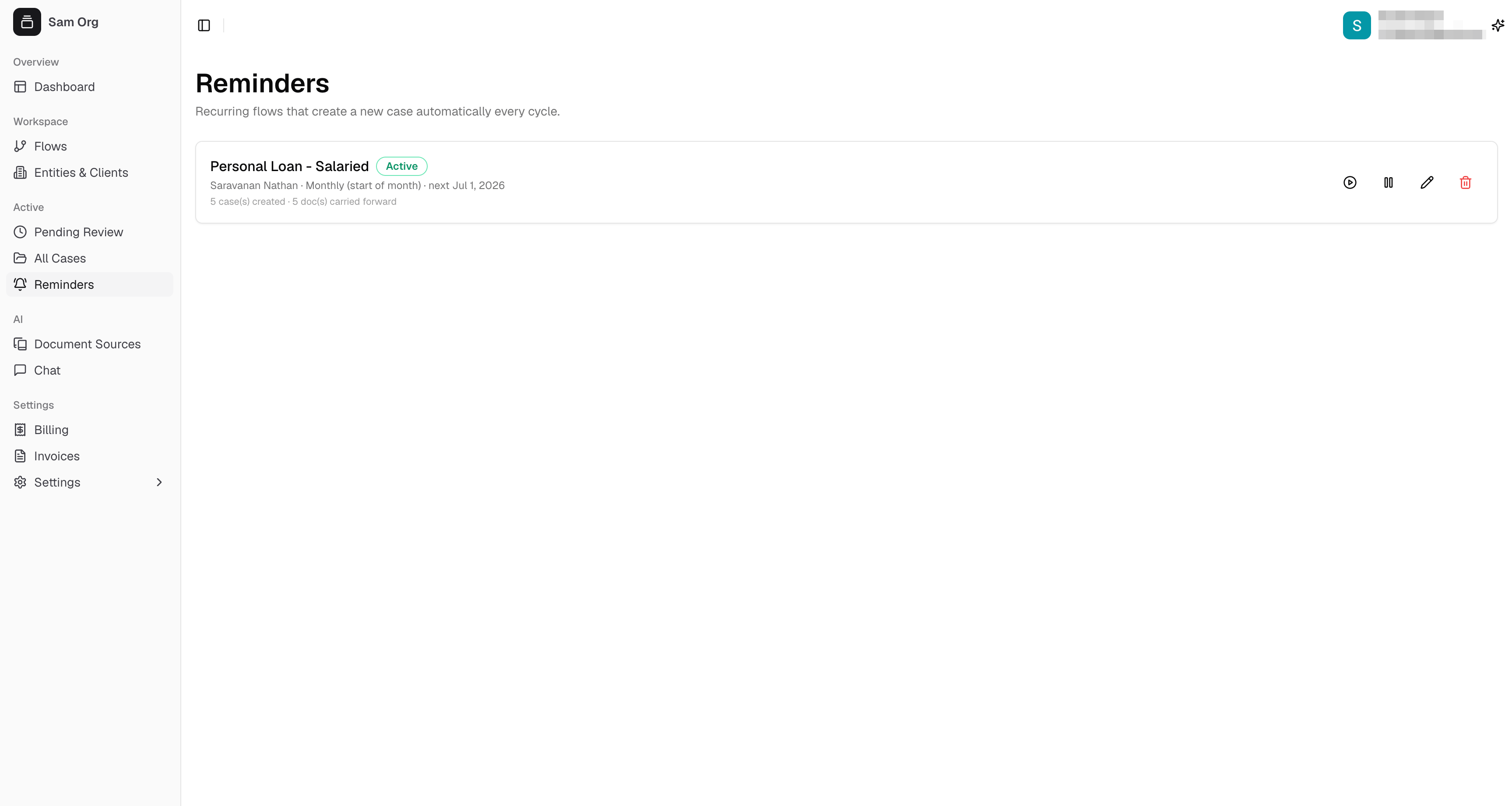
The Reminders page
Making a flow recurring
You set up a reminder from an existing case — the recurring schedule reuses that case’s flow, client, and settings as its template.1
Open a case
Go to a case that represents the work you want to repeat.
2
Click “Make this flow recurring”
Find this option in the Case Info panel on the right side of the case.
3
Choose how often it runs
Pick a Frequency — monthly (at the start or end of each month), quarterly, or every few months — and set the document deadline (how many days the client gets after each new case is created).
4
Carry forward documents the client already gave (optional)
Tick any documents the client has already provided — such as PAN or Aadhaar. These are reused automatically each cycle, so the client is only asked for the documents that actually change. (See below.)
5
Create the reminder
Optionally turn on Email only to skip WhatsApp for the recurring cases, then click Create reminder. The schedule now appears on the Reminders page, and the first automatic case is created on the next scheduled date.
Carry-forward documents
When you make a flow recurring, you can mark documents the client has already provided — like identity proofs that don’t change month to month. Those are carried forward automatically into every new case, so each cycle only asks the client for the documents that are actually new. Less work for them, faster turnaround for you.Reading the Reminders list
Each recurring schedule shows up as a card with everything you need to see at a glance:- Flow name and an Active or Paused badge.
- Who it’s for, the cadence (e.g. “Monthly (start of month)”), and the next run date.
- A running tally — how many cases it has created so far and how many documents are carried forward each cycle.
Managing a reminder
Each reminder card has a set of actions on the right:Create a case now
Create a case now
Run the schedule immediately without waiting for the next cycle. This creates a new case right away — carrying forward the same documents and notifying the client, exactly like an automatic run. It doesn’t change the next scheduled date.
Pause / Resume
Pause / Resume
Temporarily stop creating new cases without losing the schedule. Resume whenever you’re ready and the cycle picks back up.
Edit schedule
Edit schedule
Change the frequency, the next run date, the document deadline, or the email-only setting.
Delete
Delete
Stop the schedule for good. No more cases are created from it. Cases that were already created stay exactly as they are.
A reminder only controls new cases going forward. Pausing or deleting a reminder never touches the cases it already created — those remain open, tracked, and reviewable like any other case.