

Where to find it
Open Document Sources from the AI section of the left sidebar. This opens the Knowledge Base page, where all your sources live.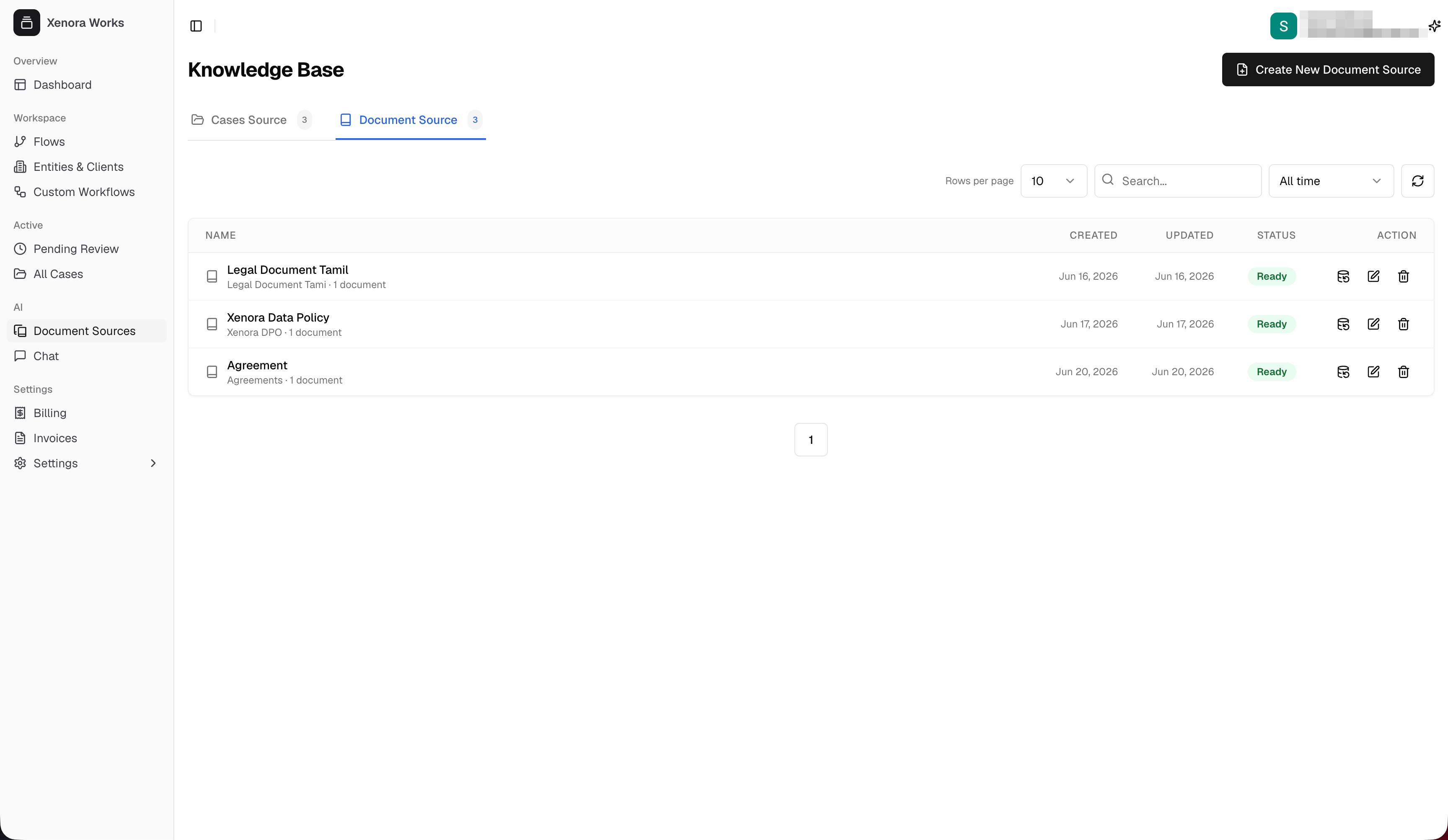
The Knowledge Base page, showing your document sources
Document Source
Knowledge bases you build from your own uploaded files — the focus of this page.
Cases Source
Knowledge bases created automatically from your trained cases. See Train a Case.
Create a new Document Source
From the Knowledge Base page, click Create New Document Source in the top-right corner.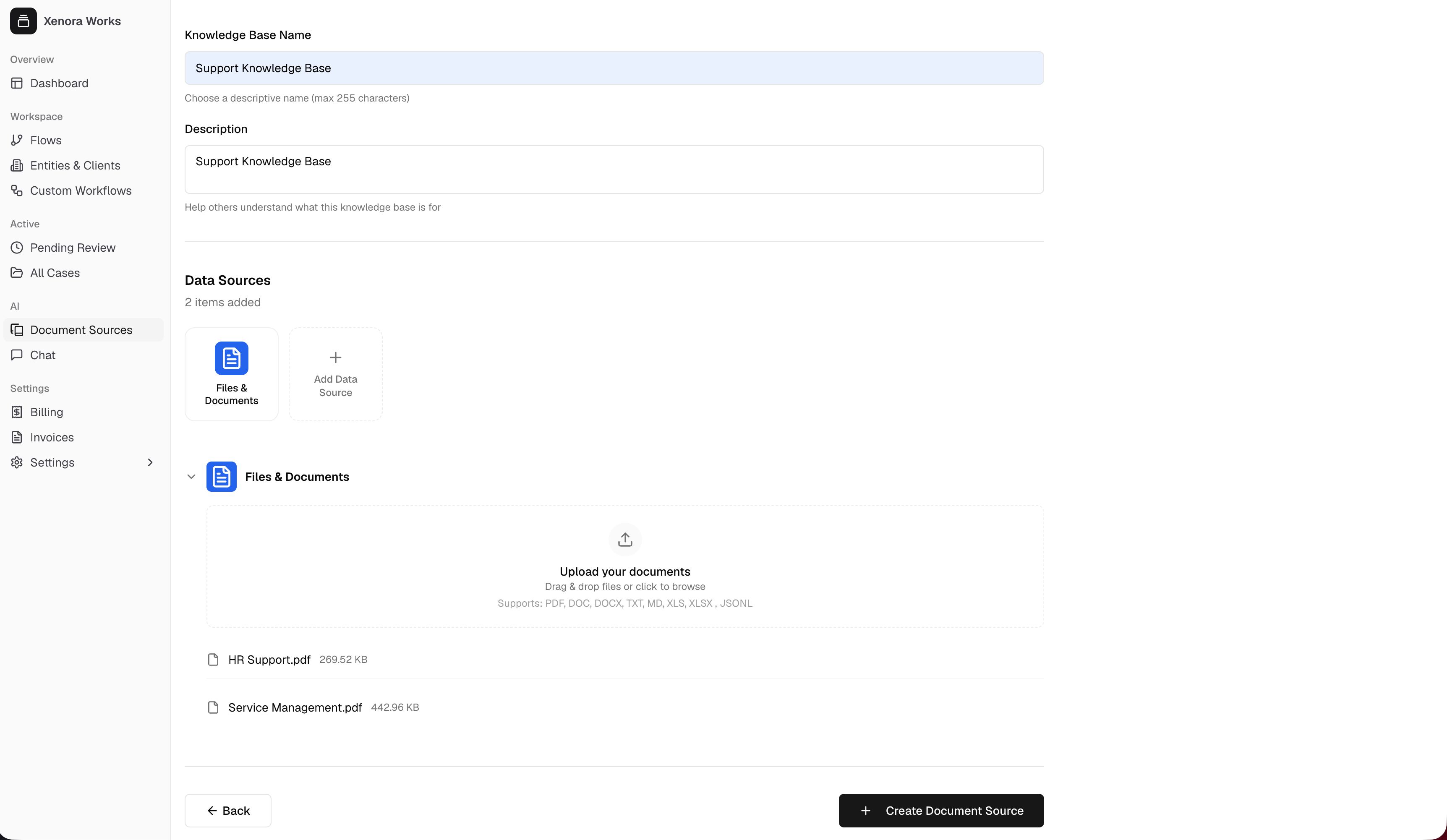
Creating a new Document Source
1
Name your knowledge base
Enter a Knowledge Base Name — a short, descriptive title like “Support Knowledge Base” or “HR Policies”. This is how you’ll recognise it later in the chat selector.
2
Add a description
Write a one-line Description so your teammates understand what this knowledge base is for.
3
Add your files
Under Data Sources, the Files & Documents option is selected by default. Drag and drop your files into the upload area, or click to browse and pick them from your computer.Supported file types: PDF, DOC, DOCX, TXT, MD, XLS, XLSX, and JSONL. You can add several files to the same knowledge base — each one appears in the list below the upload area with its size.
4
Create the source
Click Create Document Source at the bottom. Xenora reads and indexes your files so the AI can search them. This takes a few moments — the status starts as Processing and changes to Ready when it’s done.
Managing a Document Source
Each source in the list has a set of actions on the right:Re-train
Re-train
Refresh the knowledge base after you’ve added, removed, or updated files so the AI’s answers reflect the latest content.
Edit
Edit
Change the name, description, or the files in the knowledge base.
Delete
Delete
Permanently remove the knowledge base and everything indexed from it. The AI can no longer answer questions about it. This can’t be undone.